Nothing is more frustrating than waiting for approval and then seeing that Facebook business verification failed. You uploaded your documents, followed the steps, and still got a rejection with very little explanation. The good news is that most cases come down to a small number of fixable problems. This guide explains why Facebook business verification failed for so many advertisers, shows you how to fix each cause, and helps you resubmit with a much better chance of approval.
Whether you run ads, manage client accounts, or want to connect WhatsApp Business API, you will find a clear checklist below. Read it once, fix the issues, and then submit again.
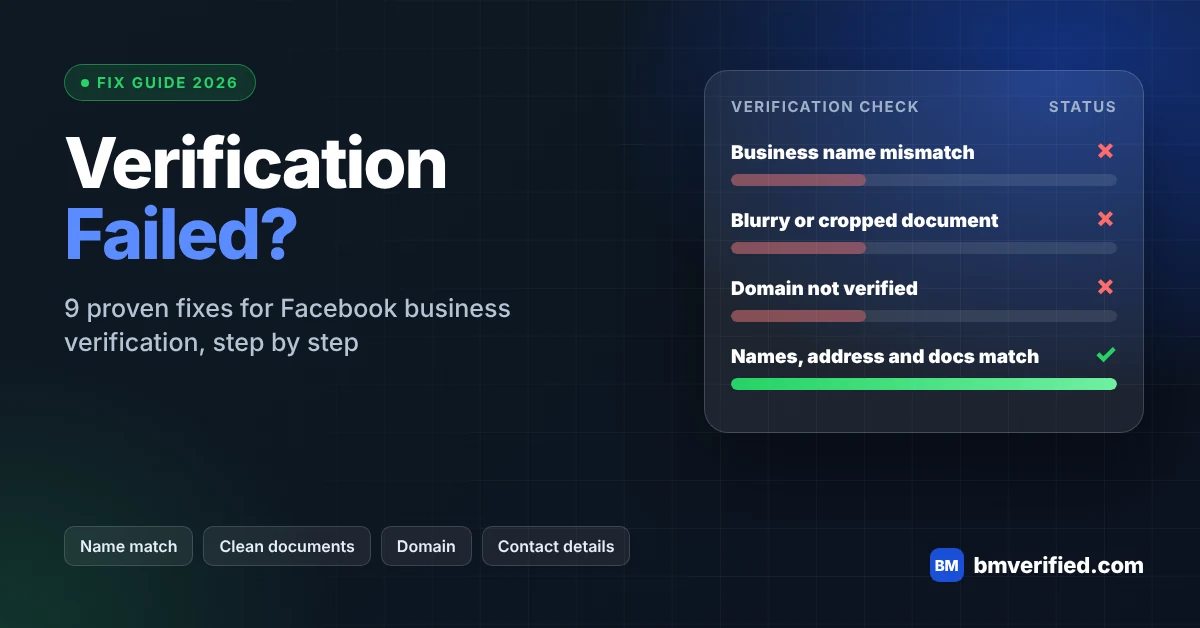
Table of Contents
- What Does It Mean When Facebook Business Verification Failed?
- 9 Reasons Facebook Business Verification Failed
- How to Fix Facebook Business Verification Failed Step by Step
- Documents Meta Usually Accepts
- How Long Should You Wait Before Trying Again?
- Mistakes That Make Verification Fail Again
- What to Do If You Still Cannot Get Verified
- Frequently Asked Questions
- Final Thoughts on Facebook Business Verification Failed
What Does It Mean When Facebook Business Verification Failed?
Business verification is Meta’s way of confirming that your business is real and that the details in your Business Manager match official records. Meta reviews the information and documents you submit, and then it approves the request, asks for more information, or rejects it. You can read the official process in Meta’s business verification guide.
When Facebook business verification failed, it means Meta could not match your details to the documents, or it could not confirm the business with the information you provided. A rejection is not a permanent ban. In most cases you can correct the problem and submit again.
One point is worth remembering. Meta can change its screens, document lists, and review rules at any time. If something in this guide looks different from what you see, check the Meta Business Help Center for the latest wording.
9 Reasons Facebook Business Verification Failed
These are the most common causes behind a rejection. Check them one by one against your own submission.
1. The business name does not match
The name in your Business Manager must match the name on your documents. Even small differences, such as a missing “LLC” or a different spelling, can cause a mismatch.
2. The address does not match
Your address in the Business settings should match the address on your document. A short form, a missing unit number, or an old address can lead to a rejection.
3. The document is blurry, cropped, or hard to read
A low-quality photo is one of the easiest ways to see Facebook business verification failed. Every edge, stamp, and line of text should be clear.
4. The document type is not accepted
Meta accepts certain document types, and the list can differ by country. A personal ID or an unrelated bill may not count as proof of a business.
5. The document is expired or outdated
Old licenses, expired registrations, and bills that are too old can be rejected. Use the most recent document you have.
6. The website or domain does not match the business
If your website shows a different business name, or if the domain is not verified in your Business Manager, Meta may not be able to connect the pieces.
7. The email or phone cannot be confirmed
Verification often asks you to confirm a code by email, phone, or text. If you cannot receive the code, or if the email does not belong to the business domain, the process can stall.
8. The business information is incomplete
Missing contact details, a blank website page, or unclear business descriptions give Meta less to check. The more consistent your public information is, the easier the review becomes.
9. The Business Manager has other problems
A restricted account, a duplicate business, or a history of policy problems can affect the result. In that case, fixing the documents alone may not be enough.
How to Fix Facebook Business Verification Failed Step by Step
Use this process whenever you see that Facebook business verification failed. It follows the same order that Meta’s review follows, so each step removes one likely cause.
- Open the verification status. Go to your Business settings and read the exact message. It may point to the document, the name, or the contact details.
- Compare your names and addresses. Put your legal document and your Business Manager details side by side. Make the name and address identical, character by character.
- Choose a better document. Pick an official document that shows your legal business name and address, and make sure it is current.
- Create a clean scan. Use a flat, well-lit scan or a high-resolution file. Do not crop, edit, or compress it heavily.
- Check your website and domain. Make sure your site shows your business name and contact information, and complete domain verification if Meta asks for it.
- Confirm your contact details. Use an email on your business domain, a working phone number, and a device that can receive the confirmation code.
- Submit once, carefully. Fix everything first, then resubmit one time. Avoid sending repeated requests while the first one is under review.
If you need more help, you can read our related guides and the full verified Business Manager service page to understand what a verified setup involves.
Documents Meta Usually Accepts
The exact list depends on your country and business type, so always check the options shown inside the verification screen. This table shows the general kinds of proof that Meta usually asks for.
| Purpose | Common Examples |
|---|---|
| Legal business name | Business license, certificate of formation, registration certificate |
| Business address | Utility bill, bank statement, or tax record showing the business address |
| Business phone | A phone bill or official record showing the business number |
| Tax registration | Tax registration certificate or an official tax document |
Always use real, current documents that belong to your business. Edited or fake documents break Meta’s rules and can lead to permanent restrictions.
How Long Should You Wait Before Trying Again?
Meta does not publish one fixed waiting time that works for every case. Some reviews finish quickly, and others take several days. The safest approach is to wait until your current request shows a final status, fix the cause, and then submit again.
If the screen offers a way to appeal or request another review, use it only after you have corrected the problem. Sending the same documents again without changes usually brings the same result.
Mistakes That Make Verification Fail Again
Many advertisers see Facebook business verification failed more than once because they repeat the same errors. Avoid these:
- Uploading the same document without fixing the mismatch.
- Changing business details between each attempt.
- Using a personal email or a free email for a business that has its own domain.
- Submitting several requests from different accounts for the same business.
- Using screenshots instead of the original file.
- Ignoring the message that Meta shows after the rejection.
Keep your information stable and consistent. A calm, careful resubmission works better than rushed attempts.
What to Do If You Still Cannot Get Verified
Some businesses are very new, operate in countries with limited documents, or simply cannot complete the process quickly. If you have followed every step and Facebook business verification failed again, you can contact Meta Business Support through the Help Center to ask what is blocking you.
Another option is a ready-prepared setup. A provider can supply a Business Manager that has already completed verification, so you can start with a more established workspace. Before you choose one, ask what is included, how support works, and what the replacement terms are. You can review the options on our verified Business Manager service page.
Whatever route you take, remember that verification does not guarantee ad approval, spending limits, or uninterrupted access. You still need to follow the Meta Advertising Standards with every campaign.
Frequently Asked Questions
Why did Facebook business verification fail even with correct documents?
The most common reason is a mismatch between the document and the business details in your account. The name, address, or phone number may differ slightly. Compare them carefully and make them identical.
Can I try again after Facebook business verification failed?
In most cases, yes. Fix the problem first, then submit again. If you do not change anything, you will probably get the same result.
How many times can I submit business verification?
Meta does not publish a simple public limit. Submit carefully and avoid sending many requests in a short time. If the option disappears, contact Meta Business Support.
Do I need a website for business verification?
A website is not always required, but a site that shows your business name and contact details makes the review easier. It also helps if your domain is verified in your Business Manager.
Does verification guarantee my ads will be approved?
No. Verification confirms your business details, but ads still go through Meta’s own review and policies. Even after you fix the problem and the approval comes through, you still need compliant ads.
Final Thoughts on Facebook Business Verification Failed
A rejection feels like a wall, but it is usually a signal that one detail needs to change. When Facebook business verification failed for you, start with the name and address match, use a clean and current document, and keep your website and contact details consistent. Then submit once and wait for the result.
If you need a faster route or extra guidance, our team can explain the available options. Visit the verified Business Manager service page and contact us on WhatsApp or Telegram before you decide.